
You can add YouTube videos easily to Pages, News Posts, Calendar Events, FAQ entries, and more areas of your website. Any editable area that uses the editor to manage content can have a YouTube video in it. First, navigate to the page or area where you want to place your video. Make sure you see the advanced editor (see below). Then click on the YouTube Button that is on the right side of the bar.

You will then see the YouTube popup panel:
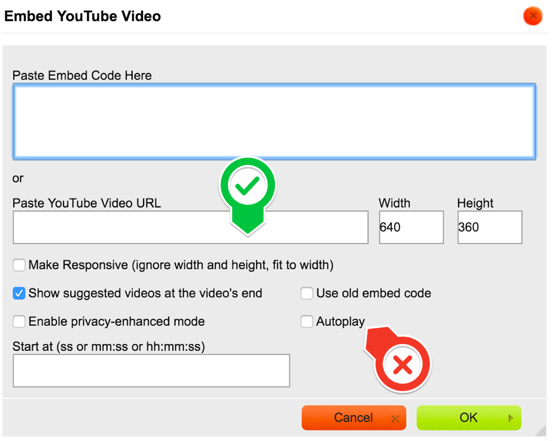
Copy and paste the URL to the YouTube Video into the box that we highlighted in the image above with the green checkmark.
Hit OK and you are done.
Checking “autoplay” will make the video play when the page loads. You can do this if you want to, but it tends to annoy website visitors. Hit “OK”, then save the page or application that you are working in.