
This guide will give you step-by-step directions on how to tie Users to Pages (and other content) that they should have access to for editing.
Note: You will need to have overall ADMIN rights to be able to add departments, users, and permissions.
If you do not have overall Admin rights to your CMS, and you feel that you should, please contact us at
support@evogov.com
.
You should NOT give everyday users ADMIN rights to your CMS as a quick-and-dirty method of granting access to manage content!
Before you can begin adding Users and permissions you will need to ensure that Departments and Groups are first setup in the CMS.
Groups and Departments are technically the same thing. The main difference between them is that a Department has website content associated with it.
In other words, you can setup a Group and just use it for security. "Finance Administrators" would be an example of a Group.
Conversely, you can create a "Finance" department that is used for both security, and also to show Finance content in the website.
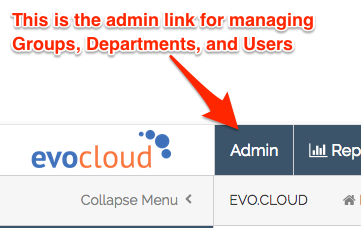
To setup Departments and Groups, use the Admin link at the top of the CMS:
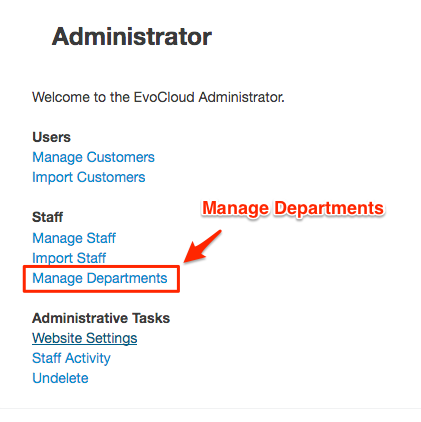
Make sure that the Department that this User will be a member of is added.
Note - a User can be a member of MANY Departments, so make sure that ALL necessary departments are listed.
Before you setup new Users, you MUST complete Step 1 and make sure that your Departments/Groups are setup.
To add a new User, click the Admin link at the top of the CMS and then click on "Manage Staff".
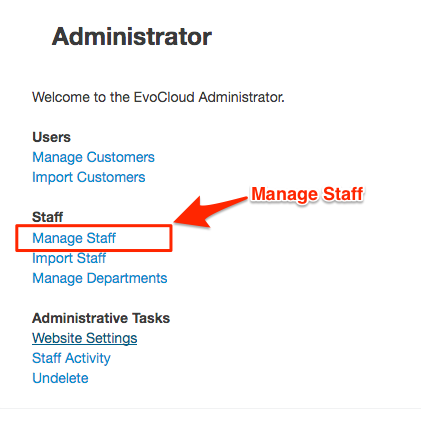
Each user has a Primary Department/Group that they are assigned to. The primary Group is in a drop-down that you will see on the Staff edit screen.
Make sure that all of your Staff members have a Primary Group that they are assigned to, as this will affect dashboard views we are rolling out, which show their main Department's content first when they log in. Also select the other departments that this user should have content access to.
Once your user is created, you can then edit them to see their "Permissions" tab.
The permissions tab is used to grant access to Applications in your website's CMS.
If you wish to allow a user to edit Pages only in the CMS, then you would select the permissions under the "Pages" application.

If you have very few users that will manage ALL pages and content in your website, then you do not need to set content-level permissions.
However, if you have many departments that need to keep their content editing separated, then you will need to make sure that all content in the website (like pages) are assigned to Departments AND have permissions set.
Cascading Access Alert:
If you grant a User access to manage Pages, but the Pages themselves have not had security
set to lock them down to specific departments, then the User can edit ALL pages that are not assigned to Departments.
This is a common challenge (assigning content to departments).
Please use this section to learn how to limit access to specific content.
To change the permissions of a Page (or other Application) click the permissions tab in the upper right.

On the Permissions tab, the list starts with a list of all Users that you can opt-into the page for editing and publishing.
Note: Once you assign SPECIFIC User and Group access to the page, then ONLY those users and groups can edit the page (in addition to Site Admins).
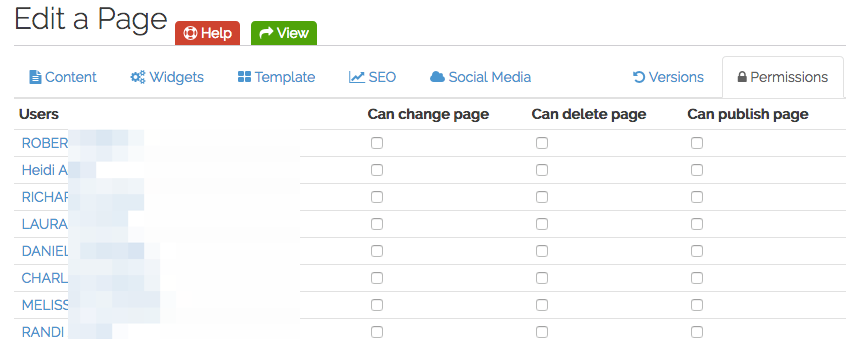
Below the list of Users, is a list of Departments/Groups that you can also assign to the page:
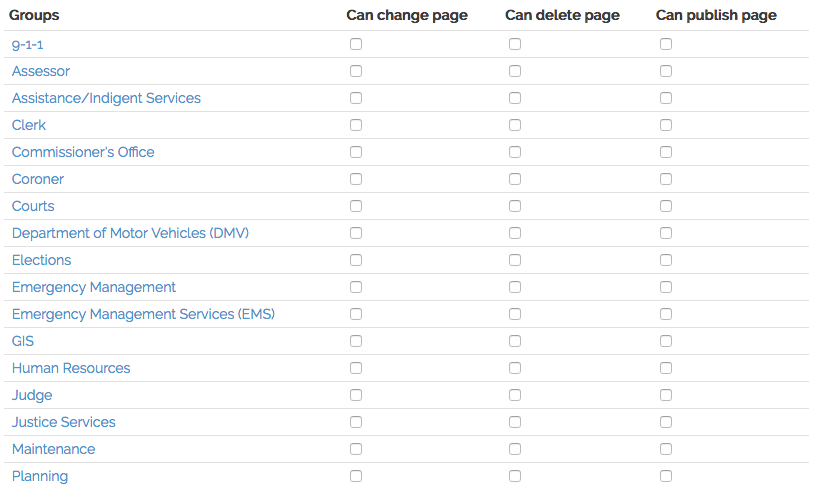
Again, remember that once you assign Departments or Users to edit the page, then ONLY those Departments and Users can edit the page (in addition to site Admins).
Once security is setup for Users, Department/Groups, and Content, you will need to send your new users their CMS logins.
The system does NOT show passwords (even to the EvoGov staff), but from the Manage Staff screen you can send a login link to Users so that they can set their passwords.
Logins are tied to
unique email addresses
. You should NEVER allow users to share logins using the same email addresses - ever.
Everything created, updated, or deleted in the CMS is tracked, and it is important all logins are unique for security reasons.
To send a User their login, go the "Manage Staff" link in the admin. Check the checkbox next to each user that you wish to send their login to, and then click the button at the top of the list that looks like this:
All Users login at the same location (
www.yourdomain.com/admin
).
This URL will forward to the specific (and dynamic) Cloud URL for your CMS instance.
We recommend that you do NOT bookmark the cloud server URL as it will change from time to time.
Instead, please bookmark
www.yourdomain.com/admin.
Obviously, you want to replace "yourdomain.com" with your actual domain name.
We are currently working on a new set of admin screens and features for the CMS to make managing permissions easier for you.
A side benefit of these new security features will be the ability for users to quickly browse their own department's content.
A prerequisite for these features is that all content should be assigned to departments. This is why there are now department drop-downs on all content.
Summary of new Features Coming: